VIEW ALL GALLERY LIGHTS
Showing posts with label blogger. Show all posts

Wednesday, July 6, 2011

How to solve CSS errors in Blogger template using Firebug

Knowing CSS can help you in solving Blogger template errors ,or make some customization . But how to do that ? how to find where is the trouble or find what CSS attribute you need to change when  make customization ? In this post ,I will show you what I did : using Firebug (a Firefox add-on ) to work with CSS .
Firebug is a great add-on of Firefox browser ,it's very popular in web development because it can help us inspecting website elements ,debugging errors in CSS ,script ,seeing web layout ....
To use Firebug ,first ,Firefox browser must be installed in your PC . Then go to website : http://getfirebug.com/ ,click on Install Firebug to get the latest version and installed this add-on to Firefox .

After installing Firebug ,you will see an new button in browser window ,this button has the image of a bug .

Enter the Blogger blog you want to fix errors or make customization
When the page fully loaded ,click on firebug button ,the firebug window will appear at the bottom of browser window .

Click on the arrow button in firebug window
 
After click this button ,there will be a rectangle around the element that the mouse is pointing .  Move your mouse pointer to the element you want to change size or fix error
In the right panel of firebug window ,you will see the CSS tags of element which you are pointing .


You can click on the value of these CSS attributes to change value of them ,for example ,in this picture ,I changed width of an element in the right panel ,and see how it look after changing immediately in browser window .
You can also add more attributes to a CSS tags to make it display as you want ,for example ,you want color of all text in an element changed to white color,just right click on right-panel and ,choose new property ,and then add color:#fff;

That's very easy and fun because you can see how your site is right after making changes .

But how to know which CSS need to change ,or meaning of CSS tags or what need to add to make it display as you want ? You can see it easily in my previous post : 31 online CSS cheatsheets that may helpful .

You can use Firebug to see the element layout ,the right or left margin ,padding... in Layout tab in right panel .
When you finish the work ,just go to Blogger template (xml file) ,and add the tags or attributes that you've just added in Firebugs to your template .
There're many functions that Firebug can help you in finding bugs and fixing errors .It's very easy to use ,believe me ,just need a little of time ,you can handle this software and make it work for you ^^

Monday, June 20, 2011

Useful online mind mapping and brainstorming tools

Concept mapping and Mind mapping software are used to create diagrams of relationships between concepts, ideas or other pieces of information,by using this ,all ideas are connected and we get a greater image . It is used by individuals, corporate teams, students and teachers alike for various purposes.
As bloggers,we can use this technique for brainstorming ,getting new idea for blogging . In this post, I want to show you some online tools for mind mapping .

1. Spider scribe

Spiderscribe

SpiderScribe is a user friendly, free and online collaborative mind mapping tool for project management and brainstorming. With this flexible tool you can create freestyle and multi-directional maps – and combine them with elements such as images, text, files, calendar events and geographic locations.

2. Mindmeister

mind meister

MindMeister is the most simplistic mind mapping tool , but its simplicity is definitely an asset. Once you’re logged into the service, you can create a fully functionalmind map using little more than the directional arrows and the Insert key to add new nodes to your map.You can set font size ,node colors ... ,and exporting file to popular format PDF, JPG, PNG, or GIF.

3. WiseMapping

wisemapping

WiseMapping is a free online mindmapping and collaboration tool which helps in Creating mind maps online, invite friends as contributors (useful when working in a team), save maps as PDF, and more. The drag’n’drop capabilities of WiseMapping make it easy to build up your diagram.

4. Mind42


Mind42

Cool mind mapping tool for creating highly customizable organization charts. Each chart node can be colored, converted to an image, supplemented with a custom icon, link, attachment and more.

5. Mindomo


Mindomo

Mindomo is an online mind map Software where users can create, view and share mind maps in their browser. Mindomo is offering the basic services for free, while charging for advanced features. Unregistered users can view the mind maps, while registered users are permitted to create and share mind maps.

6. Gliffy


Gliffy

Extremely powerful techy-oriented diagram creation and collaboration tool, create anything from basic flow-chart diagrams to well-documented troubleshooting guides.

7. XMind


Xmind

The interface is simple and intuitive to use. You can quickly move through your entire mind map with only a handful of keystrokes or jump over to the outline view for even quicker navigation. In addition to a basic mind map you can also create fishbone, organizational, tree, and logic charts. You can export charts as HTML, images, or text, and XMind comes a free account on XMind.net which allows you to share your charts online and embed them into blogs and web sites.

8. Glinkr


Glinkr

Map and share your views of contents on the Web.It's a free tool,easy to use .

9. Solvr


Solvr

An interesting tool for getting solutions from others . You have a problem ,share it on Solvr, you have a link ,you can send this link to your friends ,or submit it to a forum,social networks .Every people who have the link can go to Solvr and share the solution to solve the problem .

10. Bubbl.us


bubbl.us

Mind mapping is a fantastic way to sketch out ideas and do some really productive brainstorming. Bubbl.us is a mind-mapping product aimed towards exactly anyone who needs help organizing their thoughts or any jumbled information. Powered by Flash, Bubbl.us makes it easy for anyone to quickly start planning and sorting out their ideas through the use of linked text bubbles.

11. iMindMap


iMind

iMindMap takes a different approach to mapping than the other applications in the list. Rather than create new nodes off the main idea by adding boxes, nodes are created by clicking in the center or the main idea and drawing away from it with the mouse. Each new idea is a branch off the center. Strangely, many of basic feature available in free mind-mapping software are only found in the more expensive versions of iMindMap, like the ability to expand and collapse branches. Mind maps created in iMindMap can be exported as PDF, JPG, PNG and text outline.

Saturday, June 11, 2011

Creating a Blog Concept for New Bloggers

This guest post is by Mariana Ashley

One of the most difficult aspects of starting up a blog is creating a concept. Especially when creating a blog intended to collect ad revenue or your first official "serious" blog (as in, you want this blog to have thousands of subscribers and launch you into a blogging career), devising a foundation that will unify all your potential posts and ideas can become terrifyingly daunting. Any experienced or successful blogging guru will tell you that planning is critical in this phase of blogging. Fortunately, the variety of methods for planning and creating a blog is currently approaching infinity.

Stop and Ask Why


This is a crucial step that not enough bloggers do. In order to have a successful blog, you have to define and redefine the purpose of your blog. This may include some personal goals like "keep my writing skills up" or "have an online presence for my work." Remember that you should also ask why your blog will be read by others. What purpose will it serve for them? Will it serve a valuable niche topic? Will it provide good information that is otherwise hard to find? There are never too many why questions to ask before starting a project. The more you define why you are creating the blog and why it will be important to others, the more valuable and focused your blog will become in the end result.

Research


First and foremost, research research research! You should be reading any and every blog related to any idea you might want to blog about. If you don't have a feed reader, get one now! Seriously, if you want to consider yourself a blogger and don't want your life to become a nightmare of bookmarking and internet history searching, you need a reader like any aspiring author needs a bookshelf (or milk crates if they're on a budget).

As a Google fan, I use Google Reader to aggregate my feeds, but I recently started using Feedly (which basically transforms Google Reader into a personalized magazine) to consume my feeds. Since many readers allow you to integrate, import, or export your feeds, you can easily experiment with various readers and see what works best for you. Remember to organize your feeds and create a folder for blogs that give you inspiration for your new concept.

Brainstorm


Believe it or not, brainstorming is an essential process of project planning that too few bloggers (and countless other professions for that matter) actually implement. With all the free (usually for at least some limited service) project planning software and web applications available, there's no excuse to forgo this planning step. Of course, Word or Notepad – or even a physical sheet of paper and a pen – are all you really need to brainstorm, but it can be fun to get fancy.

Of course, it's a good idea to define any purpose and principles of your blog before jumping into brainstorming, but it's by no means a necessity. Just blindly brainstorming blog topics can become a huge benefit and give you ideas for your blog that you would never have thought about during research.

About Author

Mariana Ashley is a freelance writer who particularly enjoys writing about online colleges. She loves receiving reader feedback, which can be directed to mariana.ashley031@gmail.com

Saturday, May 28, 2011

Create a Bad word filter in Blogger comment

In your blog ,have you ever seen the bad word in comments ? Does it get annoyed other readers ? If the answer is yes ,you may need this one . I created a script for filtering bad word in comments .You just need to make a list of bad words ,and all the words in this list will be replaced with *

How we do that ?

1,Go to Blogger Dashboard -> Design ->Edit HTML .Checked on Expand wiget templates . Backup template before making any changes .

2,Find <body> and add this code right before
<script type='text/javascript'>
//<![CDATA[
function badwordfilter(ID){
var comm = document.getElementById(ID);
var comment = comm.innerHTML;
var reBadWords = /badword1|badword2/gi;
comment1 = comment.replace(reBadWords, "****");
comm.innerHTML = comment1;
comm.style.display = "block";
}
//]]>
</script>

please pay attention to the text in black bold above,it's the list of bad words .You can add more word to this list and separate each of them with a | ,like this
badword1|badword2|badword3|....|...
do not remove / at the start and /gi at the end .

3,Find and replace

<p>   <data:comment.body/></p>

with

<p>
                                                                                 <div expr:id='data:comment.id' style='display:none;'>
                                                                                     <data:comment.body/>
                                                                                 </div>
                                                                                 <script type='text/javascript'>badwordfilter(&quot;<data:comment.id/>&quot;);</script>

That's all .Save template and see the changes

Monday, April 25, 2011

Tips for Finding the Perfect Blogger Template

Some of readers mailed to me ask for which template should they use for blog? or ask me the template they are using good or not ? In fact ,choosing a template is up to the blog owner ,not me ^^ Angela Quint from Ultrasound has some advice for you in this case .This is a guest post from Angela Quint


Did you know there are more than 10 million blogs online today? If you’re a beginning blogger, there are probably almost that many questions going through your head. One of the first questions you probably have is how to choose the right blogging template. There are thousands of templates available, including ones that are free and ones for which you pay. It’s a crucial decision, so here are a few tips that will help you pick the perfect template for your blog.

1,To Pay or Not to Pay?

Should you pay for your template? That depends on two things: how serious are you about your blog and how much computer experience do you have? If your blog is a business venture, you need it to look as professional as possible, especially if you want to monetize the site. Some premium templates are ad placement ready, which makes formatting easy.
Another big advantage of purchasing a template is that you normally get better support. If problems arise, you’ll have help at the ready and you won’t have to be a techie to keep the site functioning properly.
If you decide to buy a template, think of it as in investment in the future wellbeing of your blog.

2,Start with 2 Columns

Although there are many one and three column templates available, most bloggers agree that a two-column format is easiest to manage. One column is too simplistic and three columns gets complicated. Two columns allows you to keep the site clean but functional, with the current post on one side and the search, ads, and other elements on the other.

3,Make it Relevant to Your Niche

You have a few seconds to capture your reader’s interest. That’s why the header you use is vital. Think about the focus of your blog and the people you want to read it. Make the graphic in the heading relate to the topic. You might love kittens, but if your blog is about golf, that adorable kitty graphic isn’t relevant. If your reader loves golf but isn’t in to cats, you’ve lost him as soon as he clicks on the page.
After you have more experience, you may learn to change the heading picture, but when you’re just starting out, it’s wisest to pick a template with a relevant graphic.

4,Functionality is Key

Do you want your readers to be able to leave comments? Do you want to add pictures to each post? Is there a search function? You need to narrow down what features your blog needs and then eliminate templates that don’t offer those elements. Make sure you test each of the features and check for broken links. Your blog needs to flow smoothly from page to page to keep readers happy.
Most importantly, know what the purpose of your blog is. By keying in on your goals, you’ll be better prepared to select the perfect template for your blog.

About Author

Angela Quint is an ultrasound technician by day and a blogger by night. She enjoys writing to share her love of health and wellness with others!

Thursday, April 14, 2011

Make credit box for each author in a multi-author blog

You have a blog with many authors who contribute content ,and you want to show their short bio in credit box at the end of each post . This idea was in Wordpress for a long time ,but not in Blogger . I tried several times ,but none of them work . Thanks to comment of ابن الملكـة

He gave me a code that work in a comment ,and now I want to share this code here .Both of me and ابن الملكـة hope this code helpful to you all ,and make Blogger to be the best of blogging platform .


 Here is what we need to do :

1,First ,you find this line <data:post.body/>
and then paste the following code right after the line above.
<div style='clear:both'/>        
                                    
                                      <div id='creditbox'>
                                          <!-- Author Bio info start-->
                                          <b:if cond='data:blog.pageType == "item"'>
                                       
  <!-- First Author Info -->
                                             <b:if cond='data:post.author == "NAME OF FIRST AUTHOR"'>
                                                 <img class='authoravatar' height='39' src='IMAGE URL FOR FIRST AUTHOR' width='39'/>
                                                 <div class='postauthor'>                                                     
                                                     <h3><a href='FIRST AUTHOR'S URL'>NAME OF FIRST AUTHOR </a></h3>
                                                     <p> NOTES ABOUT FIRST AUTHOR </p>
                                                 </div>
                                                 <div style='clear:both'/>        
                                             </b:if>

<!-- Second Author Info -->
                                             <b:if cond='data:post.author == "NAME OF SECOND AUTHOR"'>
                                                 <img class='authoravatar' height='39' src='IMAGE URL FOR SECOND AUTHOR' width='39'/>
                                                 <div class='postauthor'>                                                     
                                                     <h3><a href='SECOND AUTHOR'S URL'>NAME OF SECOND AUTHOR </a></h3>
                                                     <p> NOTES ABOUT SECOND AUTHOR </p>
                                                 </div>
                                                 <div style='clear:both'/>        
                                             </b:if>

.......................
                                         </b:if>
                                         <!-- Author Bio info End-->
                                     </div>
<div style='clear:both'/>       

Notes :
1- NAME OF FIRST AUTHOR : replace this with name of your first author . Name of author must be as exact as name showed in profile .
2- NAME OF second AUTHOR :replace this with name of your second author
3- IMAGE URL FOR FIRST AUTHOR :Replace this with the link to your first author avatar or image .
4- IMAGE URL FOR second AUTHOR :Replace this with the link to your first author avatar or image.
5- NOTES ABOUT FIRST AUTHOR : Replace this with author short bio ,profile ...
6- NOTES ABOUT second AUTHOR : Replace this with author short bio ,profile ...
7- FIRST AUTHOR'S URL :Replace this with link to author profile page or link to a social network account.
8- SECOND AUTHOR'S URL :Replace this with link to author profile page or link to a social network account.

In case of there are more than one <data:post.body/> in the search result ,you can paste this code right after all the results  .
If you have more than two authors ,you can duplicate the code of first author's information or second author's information and then change the name,link,bio...

2,Add this CSS code before <body> to decorate the credit box :
<style>
                                     #creditbox {
                                       background: none repeat scroll 0 0 #EDEDED;
                                       padding: 10px;
                                       margin-top:10px;}
                                       .authoravatar {float:left;margin-right:10px;padding:4px;background:#fff;border:1px solid #f0f0f0;}
                                       .postauthor {float:left;}
                                     </style>

This is an example .You can add more CSS tags to make the credit box display as you want .
 Here is my credit box in Simplex Celebrity template


That's all for making credit box in a multi-author blog .Thanks ابن الملكـة again for this helpful tip .

Thursday, April 7, 2011

Beyond Design: 5 Tips for Making Your Blog More Reader-Friendly


This guest post was written by Alvina Lopez of accredited online colleges

For those of you bloggers who are knowledgeable about the ins and outs of website design, you definitely have a leg up in the blogosphere, as most bloggers aren't completely aware how much a blog's layout and color scheme affects a reader's attention. At the same time, however, there are a few other considerations that design-centric bloggers might want to keep in mind, especially in terms of writing. Here are just a few:

1. The title is more important than you think.

Titles are something that some bloggers put more emphasis on than others. But we could all do with placing a particular importance on making each title something special. It is, after all the first thing our readers lay their eyes on. When thinking of titles, consider your own browsing history. When you read the news online, which articles do you tend to click on? How are their respective titles worded? Checking articles that top the most popular lists is also a good way to improve your blog titles.

2. Paragraphs and blog posts that are too long turn off lots of net readers.

Paragraphs and articles that are too short make you look lazy.
Obviously, most bloggers know that writing paragraphs that are too long can tire readers out. Remember, the Internet is a veritable breeding ground for ADHD. At the same time, however, articles or paragraphs that are super short make your material look skimpy. Find a happy medium, and remember that most Internet readers especially like list posts.

3. Justified paragraphs are pleasing to the eye.

Some may disagree with me on this one, but having justified paragraphs like they do in newspapers is an aesthetic consideration that makes things easier to read. You can do this by hitting the "justify" button on Word if you do take write your first drafts on a word processor. It gives your blog articles a cleaner appearance. Off-setting quoted material in a different-colored box works well, too.

4. The placement of good hyperlinks is absolutely instrumental in drawing and keeping a reader's attention.

Hyperlinks that link out to related material are one of the hallmarks of good blog posts and Internet writing in general. But be careful. Placing too many hyperlinks can overwhelm your readers, and placing too few makes your blog post come off as not very authoritative and lacking supporting sources. Be sure to include links to quality material (i.e. stay away from content farm type stuff).

5. Cycling between the pyramid and inverted pyramid, depending on circumstances, keeps things fun and unpredictable.

Traditional journalists hew to the inverted pyramid when it comes to structuring their articles. That is, they place all the most relevant and important information in the first paragraph, and put unnecessary details further down the article. While this is a good practice for news stories, with blog posts you can shake things up a bit. By doing a right-side up pyramid, in which you tease readers with the more important info toward the bottom, you can effectively get your audience to read with bated breath till the very end. Be careful with this style, however, because it can easily turn into an exercise in boredom. Be sure to make each paragraph interesting and suspenseful in its own right.

About Author

Alvina Lopez is a freelance writer and blog junkie, who blogs about accredited online colleges. She welcomes your comments at her email Id: alvina.lopez @gmail.com.

Friday, April 1, 2011

Blogger offer five dynamic views for readers

Blogger has offered five dynamic views for readers . Now ,we can browse a blog with not only normal blog design ,but also in five different views .With the latest in web technology, including AJAX, HTML5 and CSS3 ,in these views we can :
-Read more posts without having to reload or click to a second page .
-Read posts in different layout (flipcard,sidebar,mosaic,snapshot and timeslide )
-Browse a page faster because images only load when we view ,not all at once .
......
When seeing my blog in these views ,I have to say "Oh,that's so cool"  .

See SimplexDesign blog in different views here


To enable different views to blog:
-Your blog is public. Your readers don’t need to sign in to view your blog.
-Your blog has feeds fully enabled. In the Settings | Site feed tab, you have enabled either Full or Jump Break for your Post Feed.
-You have not disabled dynamic views. In the Setting | Formatting tab, the option for Enable Dynamic Views is set to Yes.

To see a blog in different views , simply add a  /view at the end of blog url . For example ,to see SimplexDesign blog in additional views ,you can go to this address : http://simplexdesign.blogspot.com/view

In all views, search is available in the upper right hand corner. Clicking on the ">" arrow in the very top left of the header bar will slide the header bar across and allow you to choose different views for the current blog as well as type in a new blog URL.

An important thing that these views require modern browsers such as Internet Explorer 8+, Firefox 3.5+, Chrome or Safari. Many elements of these views will not work if you have an older browser.

Please note that these views do not currently support many of the features your original blog may have, including displaying advertisements. Blogger team said that they will let user personalize these views, including providing an option to set a particular view as the default and displaying advertisements over the coming months.

Here is SimplexDesign blog in new views

Sidebar view

Flipcard view

Timeslide view

Mosaic view

Snapshot view

Wednesday, March 30, 2011

Use Google web font to styling header and text in your blog

If you are using default Blogspot templates ,you can use Template Designer to set special fonts for header and text .But this function is not available if you are using a custom template . So how can we embed special fonts to blog ?


As you may know ,Template Designer in Blogspot use Google font for applying special fonts to blog .In this post ,I will show you how to use Google Font for styling text in blog without Template Designer ,just need some lines of code .

You can see demo here ( my template Simplex Newspro )

Here are steps :

1,Go to this site ,and select the font you like .

2,When move your mouse over the font ,you will see the text "Click here to embed...." .Click on this text .A new page appear . Click on Use this font tab


3,You will see two lines :


The first line is something like this  :
<link href='http://fonts.googleapis.com/css?family=xxxxx' rel='stylesheet' type='text/css'>
xxxxx is the font name . Copy this line and paste right before <b:skin><![CDATA[/* in template file . An important thing : you must add an slash ( / ) at the end of this line ,like that
<link href='http://fonts.googleapis.com/css?family=xxxxx' rel='stylesheet' type='text/css'/>
If not ,you will see an error message .

The second line you get in Google web font page is something like this :
h1 { font-family: 'xxxx',xxxxx; }
xxx are font name and style of the font .
 This line illustrate how the font you choose applied to h1 tag .

To applied the font you choose to an element in blog ,find CSS code of this element , and add the attribute  font-family: 'xxxx',xxxxx; into element's CSS attributes

For example ,in my live demo I applied new font to post title in template Simplex Newspro .
Here are steps I did :
First ,I go to this website ,and choose the font Indie Flower
 
Click on "click here to embed Indie Flower"
 
Second ,I go to Dashboard - > Design ->Edit HTML ->Checked on Expand widget templates
Add the first line to embed font Indie Flower


After that ,add the font-family attribute to element I want to apply new font in CSS section


That's all .Save template and new font will be appeared .

In this post ,I just want to show you how to use Google font to embed new fonts to blog . It's very easy if you are familliar with CSS ,work with CSS or customize templates before . If you are a newbie and don't know where to insert font-family attributes to applied new font for an element,you can make a comment . I can help if possible .

Sunday, March 13, 2011

Update for Subscription pop-up

In comments of my previous post "Using Jquery to make an one-time subscription pop-up" ,YellOblog said that he want the pop-up appear after an amount of time and the pop-up is always at the center of viewport .Thanks YellOblog for the suggestion . Here is the complete code for your request :


Live Demo

To make a Subscription Pop-up ,you can read my post  "Using Jquery to make an one-time subscription pop-up" and follow steps from 1 to 3 .

For the step 4 - Jquery code ,replace the code in the post "Using Jquery to make an one-time subscription pop-up"
with this one

<script src="https://ajax.googleapis.com/ajax/libs/jquery/1.5.0/jquery.min.js" type="text/javascript"></script>  
<script src="http://dinhquanghuy.110mb.com/jquery.cookie.js" type="text/javascript"></script>
<script type="text/javascript">
         var popupStatus = 0;

//loading popup with jQuery magic!
function loadPopup(){
    centerPopup();
    //loads popup only if it is disabled
    if(popupStatus==0){
        $("#backgroundPopup").css({
            "opacity": "0.7"
        });
        $("#backgroundPopup").fadeIn("slow");
        $("#popupContact").fadeIn("slow");
        popupStatus = 1;
    }
}

//disabling popup with jQuery magic!
function disablePopup(){
    //disables popup only if it is enabled
    if(popupStatus==1){
        $("#backgroundPopup").fadeOut("slow");
        $("#popupContact").fadeOut("slow");
        popupStatus = 0;
    }
}

//centering popup
function centerPopup(){
    //request data for centering
    var windowWidth = document.documentElement.clientWidth; 
    var windowHeight = document.documentElement.clientHeight; 
    var windowscrolltop = document.documentElement.scrollTop;
    var windowscrollleft = document.documentElement.scrollLeft;
    var popupHeight = $("#popupContact").height();
    var popupWidth = $("#popupContact").width();
    var toppos = windowHeight/2-popupHeight/2+windowscrolltop;
    var leftpos = windowWidth/2-popupWidth/2+windowscrollleft;
    //centering
    $("#popupContact").css({
        "position": "absolute",
        "top": toppos,
        "left": leftpos
    });
    //only need force for IE6
   
    $("#backgroundPopup").css({
        "height": windowHeight
    });
   
}


//CONTROLLING EVENTS IN jQuery
$(document).ready(function(){
    if ($.cookie("anewsletter") != 1) {   
       
        //load popup
        setTimeout("loadPopup()",5000);   
    }       
    //CLOSING POPUP
    //Click the x event!
    $("#popupContactClose").click(function(){
        disablePopup();
        $.cookie("anewsletter", "1", { expires: 7 });
    });
    //Click out event!
    $("#backgroundPopup").click(function(){
        disablePopup();
        $.cookie("anewsletter", "1", { expires: 7 });
    });
    //Press Escape event!
    $(document).keypress(function(e){
        if(e.keyCode==27 && popupStatus==1){
            disablePopup();
            $.cookie("anewsletter", "1", { expires: 7 });
        }
    });

});
</script>

pay attention to this line setTimeout("loadPopup()",5000);
5000 is the delay time in millisecond . You can set another value if you want .
That's all . I hope this update can fill your requests and make the subscription pop-up more profesional. You can check it out yourself and see the result .

Saturday, March 5, 2011

Auto apply lightbox effect to all images

In my blog ,DJ Remix Town asked me for how to auto applied Lightbox effect to all images uploaded ,do not need to edit HTML and add rel="lightbox" manually. And now I have the answer for this question :

How to do this ?

First ,you need to read this post and follow all my instruction for install jquery lightbox to blog .

The magic is on the second step ,find and replace this code
<script type="text/javascript">
$(function() {
$('a[rel*=lightbox]').lightBox();
});
</script>

with this

<script type="text/javascript">
$(function() {
$('a[href$=jpg], a[href$=JPG], a[href$=jpeg], a[href$=JPEG], a[href$=png], a[href$=gif], a[href$=bmp]:has(img)').lightBox();
});
</script>

The difference between them is this line $('a[href$=jpg], a[href$=JPG], a[href$=jpeg], a[href$=JPEG], a[href$=png], a[href$=gif], a[href$=bmp]:has(img)').lightBox(); 
This line mean Lightbox effect will be applied to all <a ...> tag which has an <img> tag inside ,and the href attribute of a tag is a link to image file (with the extension : gif,bmp,jpeg,png,jpg)

From now ,you can upload and insert images to your post using uploader in post editor window and don't care for the rest . Lightbox effect will be applied to all images .

Friday, February 25, 2011

Using Jquery to make an one-time subscription pop-up


Many of bloggers said that a subscription pop-up very helpful in increasing the number of subsriber . Some bloggers such as Johnchow use subscription pop-up to show his new books and ask for subscription from readers .As you can see ,the number of subscriber in Johnchow website is very impressive .
Pop-up good or bad ? I do not mentioned here ^^


In this post ,I've just want to show you how to make a subscription pop-up for your blog . This pop-up will appear in the first-time you visit and it only appear again after several days .

Live Demo

Here are steps for making a pop-up in Blogspot

1,Open template file by go to Blogspot Dashboard ->Design ->Edit HTML . Check the box "Expand widget templates"

2,Add this CSS code right before ]]></b:skin>
#popupContactClose{
cursor: pointer;
text-decoration:none;
}
#backgroundPopup{
display:none;
position:fixed;
_position:absolute; /* hack for internet explorer 6*/
height:100%;
width:100%;
top:0;
left:0;
background:#000000;
border:1px solid #cecece;
z-index:1;
}
#popupContact{
display:none;
position:fixed;
_position:absolute; /* hack for internet explorer 6*/
height:384px;
width:408px;
background:#FFFFFF;
border:2px solid #cecece;
z-index:2;
padding:12px;
font-size:13px;
}
#popupContact h1{
text-align:left;
color:#6FA5FD;
font-size:22px;
font-weight:700;
border-bottom:1px dotted #D3D3D3;
padding-bottom:2px;
margin-bottom:20px;
}
#popupContactClose{
font-size:14px;
line-height:14px;
right:6px;
top:4px;
position:absolute;
color:#6fa5fd;
font-weight:700;
display:block;
}

3,Add this HTML code right before </body>
<div id="popupContact">
         <a id="popupContactClose">x</a>
         <h1>Pop-up title goes here</h1>         
         <p id="contactArea">
             your pop-up content and subscription form ... goes here
         </p>
     </div>
     <div id="backgroundPopup"></div>

This is HTML code of your subscription pop-up .
Replace the text in bold with title of pop-up and pop-up content .
To make this popup becomes a subscription pop-up ,you can add Feedburner subscription code into pop-up content . Like this

<div id="popupContact">
         <a id="popupContactClose">x</a>
         <h1>Subscription to SimplexDesign</h1>         
         <p id="contactArea">
             <form style="border:1px solid #ccc;padding:3px;text-align:center;" action="http://feedburner.google.com/fb/a/mailverify" method="post" target="popupwindow" onsubmit="window.open('http://feedburner.google.com/fb/a/mailverify?uri=Simplex', 'popupwindow', 'scrollbars=yes,width=550,height=520');return true">
                 <p>Enter your email address:</p>
                 <p><input type="text" style="width:140px" name="email"/></p>
                 <input type="hidden" value="Simplex" name="uri"/>
                 <input type="hidden" name="loc" value="en_US"/>
                 <input type="submit" value="Subscribe" />
             </form>

         </p>
     </div>
     <div id="backgroundPopup"></div>

The text in bold is the code of Feedburner subscription form .

You might ask me : how to get Feedburner subscription form ?
It's very easy .If you are using Feedburner ,login to your feedburner account -> click on your blog feed ->click on Publicize tab -> Click on Email Subscriptions -> Active this service -> code of subscription form is in text box .

If you do not use Feedburner ,you can add other code to pop-up content ....

4, Now it's time to add Jquery code . This code will make the pop-up work .
Add this code right before </head>

<script src="https://ajax.googleapis.com/ajax/libs/jquery/1.5.0/jquery.min.js" type="text/javascript"></script>   
<script src="http://dinhquanghuy.110mb.com/jquery.cookie.js" type="text/javascript"></script>
<script type="text/javascript">
     var popupStatus = 0;
//this code will load popup with jQuery magic!
function loadPopup(){
    //loads popup only if it is disabled
    if(popupStatus==0){
        $("#backgroundPopup").css({
            "opacity": "0.7"
        });
        $("#backgroundPopup").fadeIn("slow");
        $("#popupContact").fadeIn("slow");
        popupStatus = 1;
    }
}

//This code will disable popup when click on x!
function disablePopup(){
    //disables popup only if it is enabled
    if(popupStatus==1){
        $("#backgroundPopup").fadeOut("slow");
        $("#popupContact").fadeOut("slow");
        popupStatus = 0;
    }
}

//this code will center popup
function centerPopup(){
    //request data for centering
    var windowWidth = document.documentElement.clientWidth;
    var windowHeight = document.documentElement.clientHeight;
    var popupHeight = $("#popupContact").height();
    var popupWidth = $("#popupContact").width();
    //centering
    $("#popupContact").css({
        "position": "absolute",
        "top": windowHeight/2-popupHeight/2,
        "left": windowWidth/2-popupWidth/2
    });
    //only need force for IE6   
    $("#backgroundPopup").css({
        "height": windowHeight
    });
   
}
//CONTROLLING EVENTS IN jQuery
$(document).ready(function(){
    if ($.cookie("anewsletter") != 1) {   
        //centering with css
        centerPopup();
        //load popup
        loadPopup();   
    }       
    //CLOSING POPUP
    //Click the x event!
    $("#popupContactClose").click(function(){
        disablePopup();
        $.cookie("anewsletter", "1", { expires: 7 });
    });
    //Click out event!
    $("#backgroundPopup").click(function(){
        disablePopup();
        $.cookie("anewsletter", "1", { expires: 7 });
    });
    //Press Escape event!
    $(document).keypress(function(e){
        if(e.keyCode==27 && popupStatus==1){
            disablePopup();
            $.cookie("anewsletter", "1", { expires: 7 });
        }
    });
});
</script>

The pop-up will show if you are first-time visitor to the blog and will not displayed again  for 7 days .
With this feature ,reader will not be annoyed by pop-up each time they visit your blog . After 7 days ,the pop-up will show again to remind visitor to subscribing your blog . You can set the number of days pop-up will be appeared again by set the value of expires: 7 to other value ,for example ,expires: 6 ^^

Note : If error occured when uploading template ,you must encode the script in step 4 by copying the code ,and go to this page ,paste the code in textbox and click on encode . After that copy the result and paste it back to template file .


That's all for subscription pop-up .
You can save template and back to your blog to see the changes.
I hope this post will be helpful

Wednesday, February 23, 2011

Update : How to move images in Simplex's templates from ImageShack to another host

Many of you complaint me for trouble with imageshack.us today . Early today ,all images which hosted in Imageshack.us has been changed to ugly Frogs .
I wrote a post on how to register your domain with imageshack .But this way ,you have to wait for them to approve your site .
In this post ,I will show you the way to download all images in a Simplex's template to your PC and then upload it to another host .

Here are steps

1,First ,go to imageshack.us and register an account if you don't have one .
If you have an account existed , please login to your account .

With the new Imageshack policy ,we can only see images and download them if we are registered members . So it's the reason why we need to login to our accounts in imageshack.us .

Keep the imageshack browser window open .Do not close it .

2,Open another browser tab. Go to Blogger Dashboard ->Design ->Edit HTML,checked in Expand widget templates .
Press Ctr+F for search function and type the term "imageshack.us" into searchbox ,then enter


It will show you all link of images which were hosted in imageshack.us like picture above .

3, Copy one image link ( in the bracket ) .

Open another browser tab and paste the link into address bar .
Click enter ,it will show you the image .Right click on image and choose " save picture as " . Save this image on your hard disk.


4,Find another hosting that support image , for example , in this post ,I use Imgplace.com ( this hosting is just an example and you can use another hosting providers,paid or free ,it's up to you ) . I open imgplace.com website in another tab of browser window , choose the file and click Upload


When finish uploading ,copy the direct link


5,Back to the browser tab which template file are opening . Paste the image's direct link we got from the hosting to template file .Like this (see the arrow,new link in Imgplace.com replaced old one in Imageshack.us )


When you finish this step ,you are succesfull in moving one image from Imageshack.us to Imgplace.com hosting .

6, Do the same with other images which were hosted in Imageshack.us

All steps can do very fast , you can move an image from Imageshack to another host in less than 30 seconds .Because each template has some images ,so it only take you less than 10 minutes for all images .
Save template file and shutdown browser window .

You just finish moving all images in a Simplex's template from Imageshack.us to another hosting .
I hope this post helpful .

Update : Imageshack error unregister domain - how to fix ?

Today ,not only in SimplexDesign blog and templates,the image of "IceFrog" with text like “Your country can only view this image by logging into ImageShack” or “Unregistered domain. Go to http://imageshack.us to register” appeared everywhere . This problem was happening to all images which were linked directly to ImageShack .


If you had uploaded an image to ImageShack and posted it on your website, blog, or any other applications then the ImageShack Icefrog picture would show up.
Codes provided by Image Shack are working such as the embed link to image. We can only see the images when we login imageshack.us .If not ,we can see the icefrog .All images are locked .

The solution here is very simple , you have to register your domain to imageshack.us by visiting this page and fill all the information needed: http://stream.imageshack.us/content.php?page=email&q=reg_domain

Note that this must be done by the site owner that is being affected in order for them to verify the ownership.
When you finish submiting your site ,just wait .They will aprove your site shortly and images will be displayed as before .
With the new policy ,I think imageshack.us is not a good choice for us from now . What happen if one day ,they lock all images and ask for money .

I will try another solution and provide you images to help you host them yourself as soon as possible .
If you can't wait , you can register an account in Imageshack.us ,and login . After that open template file (xml file) and search for "imageshack.us" , it will show you link of all images that hosted in Imageshack.us . Copy all these links to download manager program (such as Internet Download Manager ,Orbit,Flashget ...) and this program will download all images for you . This is the best way for you to get all images . Remember you can do this when you have an imageshack account and you loged in .

Thursday, January 27, 2011

Jquery Lightbox - another Solution for Lightbox effect in Blogger

In previous post on Lightbox effect (Lightbox really working script) , I wrote about a script for Lightbox effect based on Scriptaculous (a Javascript framework) that work well in Blogger .
But if your blog is using Jquery framework ,this Lightbox effect can't work because there's a conflict between Jquery and Scriptaculous .
So here we have another solution that can be used in Blogger ,and of course ,it can be applied for all Simplex templates (included Simplex Celebrity ,Simplex Enews ...etc) .It's Jquery Lightbox

lightbox effect in Simplex Celebrity template


Demo in Simplex Celebrity template

How to install this script ?


1,Go to Blogger Dashboard ,Continue to Design tab ,then Edit HTML tab .

2,Add this code right before <body> :

<script src='http://ajax.googleapis.com/ajax/libs/jquery/1.4.2/jquery.min.js' type='text/javascript'/>
<style type="text/css">
    /* jQuery lightBox plugin - Gallery style */
    #gallery {
        background-color: #444;
        padding: 10px;
        width: 520px;
    }
    #gallery ul { list-style: none; }
    #gallery ul li { display: inline; }
    #gallery ul img {
        border: 5px solid #3e3e3e;
        border-width: 5px 5px 20px;
    }
    #gallery ul a:hover img {
        border: 5px solid #fff;
        border-width: 5px 5px 20px;
        color: #fff;
    }
    #gallery ul a:hover { color: #fff; }
    </style>


<script src="http://dinhquanghuy.110mb.com/lightbox/jquery.lightbox-0.5.js" type="text/javascript"/>
<link href="http://dinhquanghuy.110mb.com/lightbox/jquery.lightbox-0.5.css" media="screen" rel="stylesheet" type="text/css"/>

<script type="text/javascript">
$(function() {
$('a[rel*=lightbox]').lightBox();
});
</script>

Save changes . You are done .

How to use ?

To use Lightbox effect in your post ,when editing post ,click on Edit HTML .

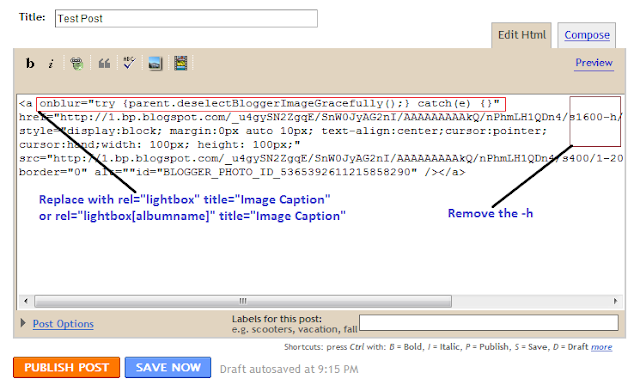
To add lightbox effect for one image , use rel="lightbox" title="Your image Caption" as picture above
To add lightbox effect for multiple images , use rel="lightbox[albumname]" title="Your Image Caption"
if you want to add another image to this album,upload the second image and use rel="lightbox[albumname]" title="Caption for Second image of albumname" 
in this case , lightbox will work like a gallery with next and previous links  and you can use keyboard to navigate through the album

That's all for Jquery Lightbox effect .
This post is for all of you ,who want to use Lightbox effect in Blogger , and specially for naxoz-report and DJ Remix Town ,who commented in my blog asked for Lightbox effect in Simplex Celebrity template .

Wednesday, January 12, 2011

Floating bar with jquery and CSS

One friend commented in my blog asking how to implement a floating bar to website . Do you know what is a floating bar in website and how it look like ? See my live demo please .Some other good examples of floating bars can be found at Meebo and Wibiya , I think many of you know Wibiya .With a floating bar ,we can :
  1. Make a menu navigation
  2. Social information
  3. Advertising
  4. Highlight important information (promos, etc.)
  5. Contact information
  6. Polls / feedback 

floating bar

Live demo


Here is steps for making a floating bar


1,In this post ,I will make a floating menubar ,but you can replace the code (in bold) with code of advertisements ,social networks ,contact information or anything you like .

<div id="navi">
<div id="menu" class="default">
<!--code of floating bar goes here-->
<ul>
<li><a href="#">Home</a></li>
<li><a href="#">CSS</a></li>
<li><a href="#">Design</a></li>
<li><a href="#">Development</a></li>
<li><a href="#">Freebies</a></li>
<li><a href="#">Inspiration</a></li>
<li><a href="#">Resources</a></li>
<li><a href="#">Tutorials</a></li>
<li><a href="#">WordPress</a></li>
</ul>
</div><!-- close menu -->
</div><!-- close navi -->

if you are using Blogger ,go to Dashboard ->Design - >Edit HTML, and add this code right after <body> in template xml .

2,We need some CSS for menu bar .
Here is the CSS code :
<style>

#navi {
    height: 50px;
    margin-top: 50px;
}

#menu {
    background: -webkit-gradient(linear, left top, left bottom, color-stop(0%, #426d9c), color-stop(40%, #0f67a1), color-stop(100%, #1384d1));
    background: -moz-linear-gradient(top, #426d9c, #0f67a1, #1384d1);
   
    border-radius: 5px;
    -webkit-border-radius: 5px;
    -moz-border-radius: 5px;
   
    line-height: 50px;
    text-align: center;
    margin: 0 auto;
    padding: 0;
}


#navi ul {
    padding: 0;
}

#navi ul li {
    list-style-type: none;
    display: inline;
    margin-right: 15px;
}

#navi ul li a {
    color: #fff;
    text-decoration: none;
    text-shadow: 1px 1px 1px #000;
    padding: 3px 7px;
   
    border-radius: 5px;
    -webkit-border-radius: 5px;
    -moz-border-radius: 5px;
   
    -webkit-transition-property: color, background;
    -webkit-transition-duration: 0.5s, 0.5s;
}

#navi ul li a:hover {
    background: #01458e;
    color: #ff0;

    -webkit-transition-property: color, background;
    -webkit-transition-duration: 0.5s, 0.5s;
}

.default {
    width: 850px;
    height: 50px;
   
    box-shadow: 0 5px 20px #888;
    -webkit-box-shadow: 0 5px 20px #888;
    -moz-box-shadow: 0 5px 20px #888;
}

.fixed {
    position: fixed;
    top: -5px;
    left: 0;
    width: 100%;
   
    box-shadow: 0 0 40px #222;
    -webkit-box-shadow: 0 0 40px #222;
    -moz-box-shadow: 0 0 40px #222;
}
</style>

if you are using Blogger ,add this code right before </head> .You can edit CSS to make menubar display as you want (change color ,font ,shadow,round corner...)

3,Finally , the most important part  : Javascript
<script type="text/javascript" src="http://ajax.googleapis.com/ajax/libs/jquery/1.4.2/jquery.min.js" charset="utf-8"></script>
<script type="text/javascript">
$(function(){
   
    var menu = $('#menu'),
        pos = menu.offset();
       
        $(window).scroll(function(){
            if($(this).scrollTop() > pos.top+menu.height() && menu.hasClass('default')){
                menu.fadeOut('fast', function(){
                    $(this).removeClass('default').addClass('fixed').fadeIn('fast');
                });
            }
            else if($(this).scrollTop() <= pos.top && menu.hasClass('fixed')){
                menu.fadeOut('fast', function(){
                    $(this).removeClass('fixed').addClass('default').fadeIn('fast');
                });
            }
        });

});
</script>

you can add this code right before </body>  .

Now save template file and you will see a menubar floating in your site .

How it works ?

At first ,we don't scroll the page , "menu" element has a class "default" .When we scroll the page ,
javascript code will : Hide the menu -> replace class "default" with class "fixed" -> then show the menu again .
What makes the magic is in classes "default" and "fixed" , in CSS code , we define "default" class with attributes for a static menubar and "fixed" class with attributes for a floating menubar .
 So when we scroll the page ,"default" class will be replaced with "fixed" class ,and this will make menubar float over other elements .

When we scroll back to top ,"fixed" class will be replaced with "default" class ,and floating menu becomes static menu .
That's all for a floating bar .To customize this floating bar ,just need some changes in CSS. I hope this will be helpful to you .